If you have recently moved to Umbraco 17, you’ve likely noticed that the old tricks for customizing the backoffice have changed. In previous versions, we could easily go into Program.cs or use an IComposer to pluck a dashboard out of the collection.
However, with the new Bellissima backoffice architecture, the UI is now entirely client-side. This means server-side C# code no longer controls which dashboards are visible. To remove the "Welcome" (or Umbraco News) dashboard, we have to use a small client-side extension.
Here is the step-by-step guide to cleaning up your backoffice.
Step 1: Create your Plugin Folder
Everything for the new backoffice UI lives in the App_Plugins folder. To keep things organized, create a new subfolder dedicated to your backoffice tweaks.
Open your project in Visual Studio or VS Code.
Navigate to
wwwroot/App_Plugins/(or justApp_Plugins/depending on your setup).Create a new folder named
DashboardTweaks.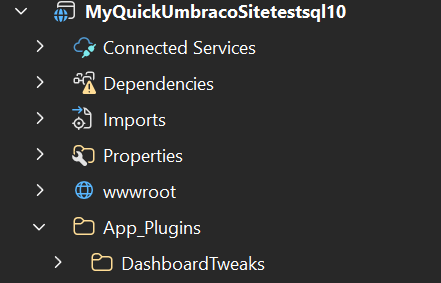
Step 2: Define the Manifest (umbraco-package.json)
Umbraco 17 needs to know your extension exists. We do this with a JSON manifest file. This file tells Umbraco to load a specific JavaScript file when the backoffice starts up.
Inside your
DashboardTweaksfolder, create a file namedumbraco-package.json.Paste the following configuration:
{
  "name": "DashboardTweaks",
  "version": "1.0.0",
  "extensions": [
    {
      "type": "backofficeEntryPoint",
      "alias": "DashboardTweaks.EntryPoint",
      "name": "Dashboard Tweaks Entry Point",
      "js": "/App_Plugins/DashboardTweaks/dashboards-setup.js"
    }
  ]
}
Step 3: Create the JavaScript Logic
Now we need to write the actual "instruction" that tells Umbraco to hide the dashboard. In the new UI, we use the extensionRegistry to exclude specific components by their internal alias.
In the same
DashboardTweaksfolder, create a file nameddashboards-setup.js.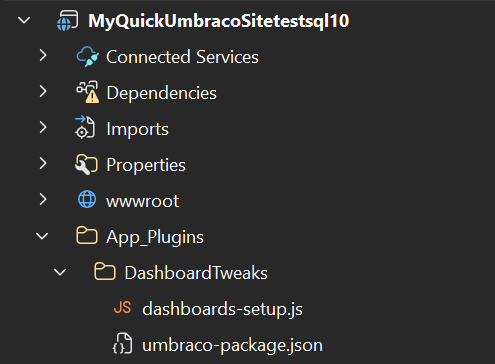
Add this code:
export const onInit = (host, extensionRegistry) => {
    // This targets the default "Welcome" / Umbraco News dashboard
    extensionRegistry.exclude('Umb.Dashboard.UmbracoNews');
};
Why this alias? In Umbraco 17, the default dashboard you see on login is registered under the alias Umb.Dashboard.UmbracoNews. By calling the exclude method, we tell the backoffice to ignore it during the rendering process.
Step 4: Refresh and Verify
Because Umbraco's new backoffice relies heavily on browser caching for speed, you might not see the change immediately after saving your files.
Restart your application (or just ensure the files are saved in the
wwwrootif you are using watch mode).Open your browser and log into the Umbraco Backoffice.
Crucial: Perform a "Hard Refresh" (Ctrl + F5 on Windows or Cmd + Shift + R on Mac).
The "Welcome" tab should now be completely gone, leaving you with a cleaner, more professional interface for your clients.
Summary for Developers
While it might feel annoying to switch from C# to JavaScript for UI tweaks, this new approach is actually much more powerful. You are no longer fighting the server-side rendering engine; you are directly telling the browser-based UI what you want to see.
If you want to remove other dashboards (like the Settings or Help dashboards), you simply find their alias and add another extensionRegistry.exclude() line to your dashboards.js file.

Written by Shekhar Tarare
Software developer specializing in .NET and Umbraco CMS. Building scalable digital ecosystems for global clients.